
- Chat! Get help. Share Monsters.
- World-wide fans & players
- Community run & moderated MR Subreddit
- If Discord isn't your thing.
Community Tournaments
- PVP & Event Calendar
- Multiple Hosts, Games & Formats Challenges
- Speed Runs & Nuzlocke Social Media & Websites
- Official and Fan channels
Please Donate!
Your contributions help keep
the site and archives going!
Create Monsters at the Shrine! MR1 DX Song List (EN) MR2 DX Song List (EN) Ultra Kaiju MR Keywords (EN) Ultra Kaiju MR Song list (SEA)
PS1 CD DB & Tools
 GameBoy Advance
 Ultra Kaiju MR
Steam Troubleshooting
Monster Rancher 1&2 DX
 This guide is for the Steam client of the game and attempts to address reported issues collected from multiple sources (Steam Forums, Reddit, MR Discord etc.) with confirmed fixes.
Each topic contains a variety of steps to try out. This does not mean you need to do all of the steps.
Try the first step listed in a given topic. If this does not resolve the issue, then move onto the next step if it applies.
Game does not load or launch at all
- OS is pending updates and/or hasn't been rebooted for a while:
- Please, First, check if you have any pending OS updates, Apply them and allow your PC to fully reboot. Sometimes it's that simple.
- No, Really, Do it. Reboot.
- Linux Only: Compatibility (If you're on Windows, ignore this section)
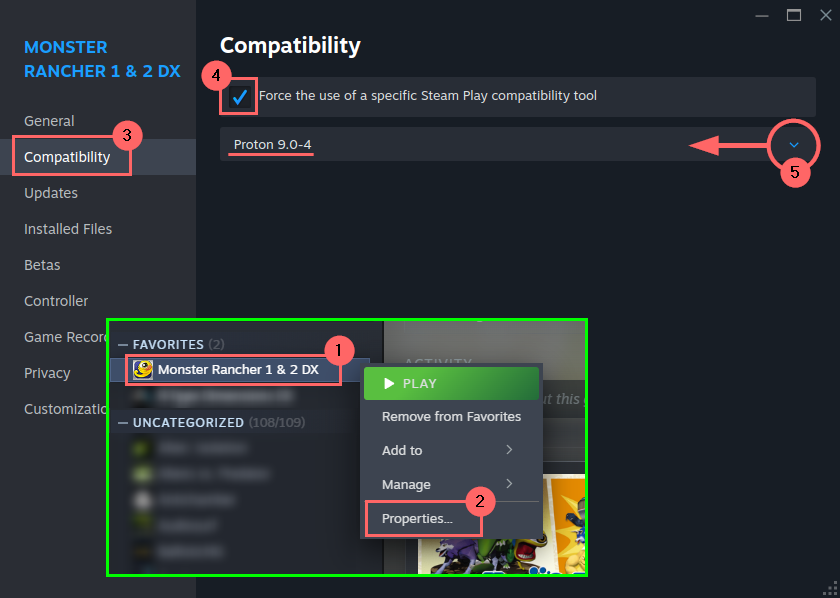
- In Steam, Right Click the game in the Library/Games sidebar.
- Select Properties.
- Select Compatibility.
- Check the box to "Force the use of a specific Steam Play compatibility tool".
- In the dropdown selection, Choose a Proton version (Typically the newest one should work, if not, choose an earlier version).
- Error Checking
- Make sure Steam is opened and running.
- Locate either the mf.exe or mf2.exe directly within the SteamLibrary common folder: SteamLibrary\steamapps\common\mfdx\[MF or MF2]\ MF.exe or MF2.exe
- Launch either game (Launching either one should produce the same error).
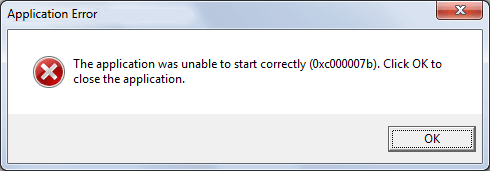
- Look for an Error window that pop up and note the Error Code.
For Example: - After attempting to launch MF2.exe you see a window: "The application was unable to start correctly (0xc000007b). Click OK to close the application.
- Google the Error code shown in the pop up window for a hint as to the cause. In this example, 0xc000007b is missing Visual C++ redistributables
- To fix this, you may need to download any missing Visual C++ Redistributable from Microsoft and install them.
- Check for OS/CPU architecture
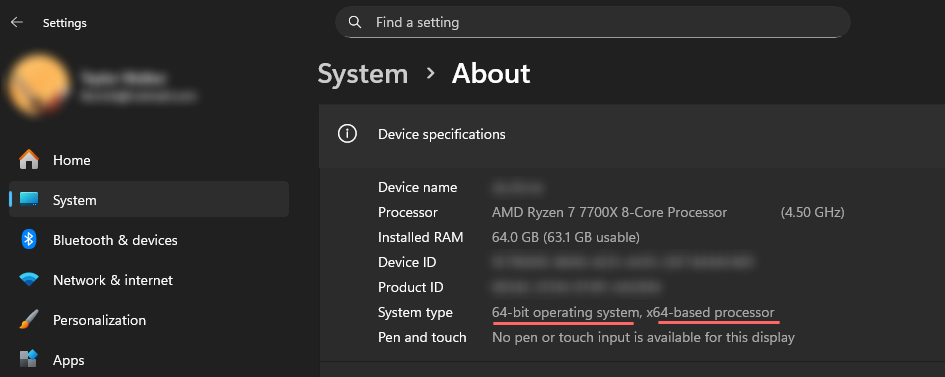
The game requires 64-bit OS, and x64-based processor. - To check in Windows
- Click the WinKey and search Settings.
- Click System, scroll to and click About.
- In the Device Specifications you'll see this listed under System Type.
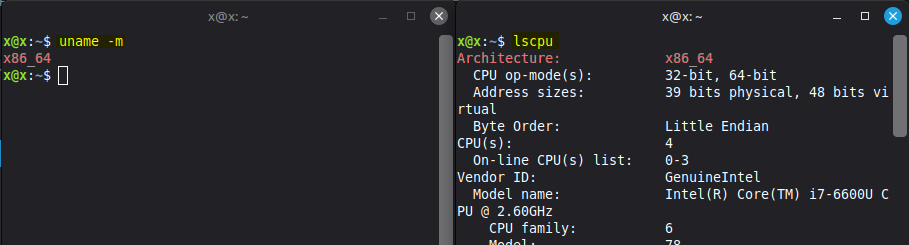
- To check in Linux
- Open Terminal.
- uname -m will indicate OS.
- lscpu will indicate CPU.
- If the output is x86_64, it is 64-bit. (If output is i386 or i686 it is 32-bit.)
- Check for CPU instruction
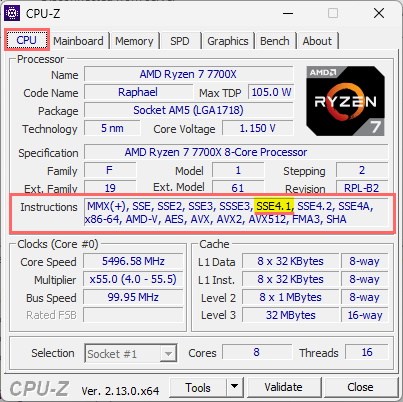
The game absolutely will not run if your processor doesn't support SSE4.1 instructions. - To check, you can download CPUID from cpuid.com.
- On the default "CPU" Tab look for a box labelled "Instructions" and if SSE4.1 is included.
- Resolution settings issue
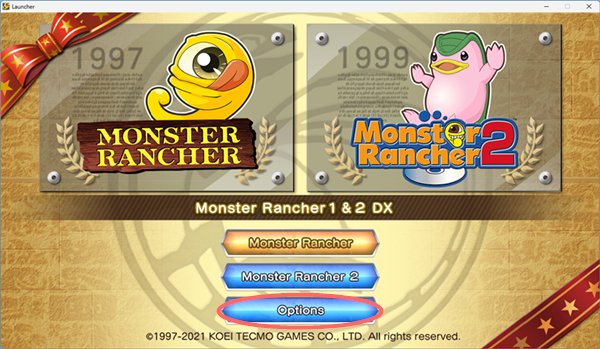
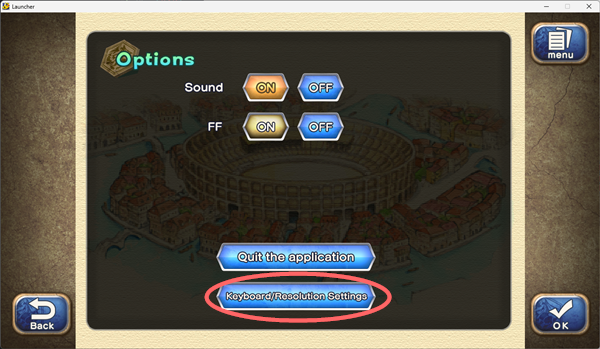
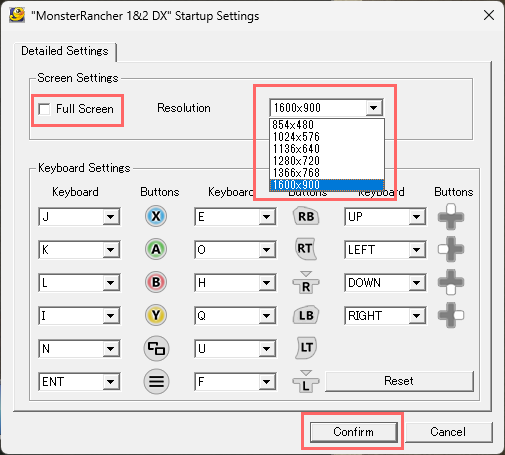
- Before launching the game, open up the Options tab at the game selection screen, then open the Keyboard/Resolution settings.
Note that the small window that opens might open behind another window - Try changing the resolution. If it is set to Full Screen, uncheck this option and choose a small windowed option, or vice-versa.
- Try to launch the game again. If the game launches, you can try setting the resultion back to your preferred setting or full screen again. Sometimes resetting this resolves the resolution conflict.
- Setting.ini file missing/broken with Non-English Operating System
- On occasion, when some Operating Systems are in a different language, the Setting.ini file causes issues with loading the game, or is missing completely.
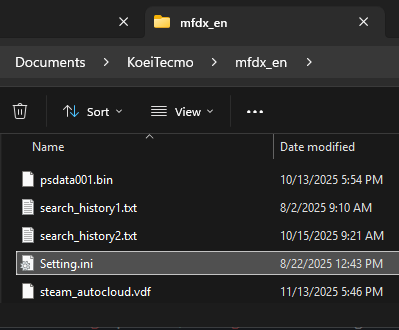
- Open the Setting.ini file located in C:\Users\x\Documents\KoeiTecmo\mfdx_en ...
... And replace it with the following text
(Click to view):[Graphics] ScreenWidth=1366 ScreenHeight=768 [Window] FullScreen=0 [Input] UP=UP_ARROW DOWN=DOWN_ARROW RIGHT=RIGHT_ARROW LEFT=LEFT_ARROW CIRCLE=L CROSS=K SQUARE=J TRIANGLE=I L1=Q L2=U L3=F R1=E R2=O R3=H START=ENTER SELECT=N
- If your Setting.ini file is missing completely, and creating one is being problematic, download and save this zipped Setting.ini file.
- Unzip/Extract the file to your Documents\KoeiTecmo\mfdx_en folder to restore a working Setting.ini file. Attempt to Launch the game. If it is successful, you can exit the game and change the settings back to your preferred settings.
- Verify File Integrity
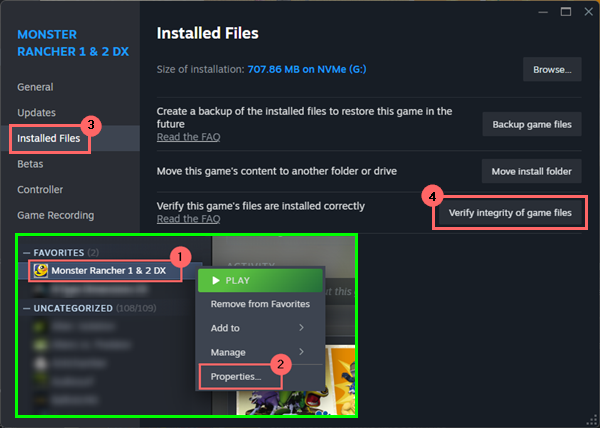
- In Steam, Right Click the game in the sidebar
- Select Properties
- Click Installed Files
- Click Verify integrity of game files
Game freezes in certain places
For other areas of random game freezing, try any of the following:
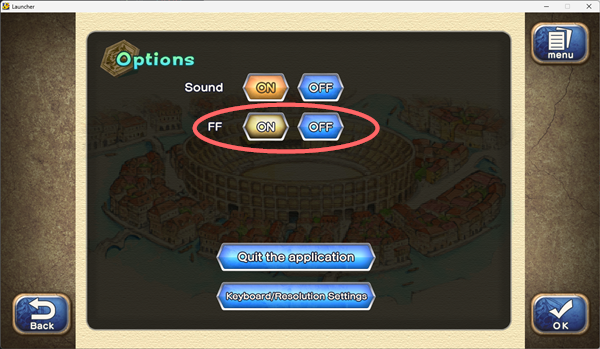
- Toggle "FF" (Fast Forward) to the opposite of what you had it on.
- Change the resolution. (If Full screen, go windowed or vice versa).
- If it still freezes, Update your video card drivers, then try the above again.
- Some Fight Stick controllers are also known to crash the game before reaching the Launcher.
Game won't save manually or auto save
- If you have any Anti-Virus such as BitDefender software running, try temporarily disabling it to see if you can save.
- If disabling Anti-Virus works, then Steam or the Game may need to be added to the Anti-Virus' White List. Find the settings for your specific brand of AV to unblock the app, then start your AV back up as usual.
- For example: Windows "Controlled Folder Access" options is a potential culprit that may need your application to be white-listed.
If that does't work...
Try launching the game's .exe file as Administrator.
- Navigate to the install directory SteamLibrary\steamapps\common\mfdx\[MF or MF2]\, Right Click on the MF.exe or MF2.exe and "Run as Administrator"
If that does't work...
Double check your User account's permission isn't being denied access.
- Exit Steam completely, and Navigate to c:\Users\[YourLogin]\Documents
- Right Click on the KoeiTecmo folder, and choose Properties
- Click on the Security tab
- Click on your Login/User name (NOT System, and NOT Administrators)
- Check that Everything is Allowed and nothing is Denied.
- Click the Edit button to open the permissions for your Login/User.
- Click on your Login/User name (NOT System, and NOT Administrators) in the Permissions window
- Uncheck any boxes in the Deny column
- Click Apply
- Click Save
If you see Anything Denied...
Corrupted/Erased Save Files
If something happens, like a power fluctuation or outage while the is writing to the save data, there is a potential that the save data can become corrupted and will not load. On a PC connected to a UPS, or on a laptop that has a continuous power supply this is very unlikely to happen (unless the laptop battery dies during a file write... which has been reported).
There is no known way to fix an already corrupted save file
Sadly once this happens, those save files are completely unusable.However...
You can replace corrupted files with previously backed up save files
PREVENTION is the best medicine.
If you Copy/Save your KoeiTecmo folder (where saves are stored) into another location, you can (at any time) copy the good files back into your KoeiTecmo directory and play from the point on the previous backup.
There are several ways to back up your save files:
- Manual Process (this is literally Copying the folder and pasting the contents of your C:\Users\[YourLogin]\Documents\KoeiTecmo\ folder, which contains the saves for both games, somewhere else for later retrieval).
- Pros: No setup or other apps required.
- Cons: If you forget to do it, you don't have backups to recover from!
- Semi-Automated (Community tools have a button you can click that will do the copying for you, and add a date/time stamp to it automatically)
- Pros: Easy 1 click to backup and timestamp.
- Cons: It's still manual and you can still forget!
- Fully Automated Backups (Using PowerShell + Task Scheduler for Windows, or using Bash script in Linux) that only run if the game is being played, and will back up your KoeiTecmo folder, with time-stamps, automatically to any directory of your choosing at any time interval you desire (every 5m, 20m, 1hr, etc.)
- Pros: Completely Automated and you'll never forget.
- Cons: Takes some setup, and you may need to clean up your saves. They're very small but can add up especially if you set the automation to back up frequently.
Please see BACKUPS For complete information on all 3 methods and how to set up backups and how to recover a corruption from backups.